Showing posts with label Organization. Show all posts

Thursday, August 22, 2019

MySchoolYear (A Homeschool Crew Review)


As the kids have gotten older, I've really come to appreciate ways that make scheduling classes and record keeping easier.  Just being able to quickly mark an assignment as complete and enter a test grade makes things flow more cohesively each day.   While I do keep a physical planner as my "rough draft" planner that I do not mind marking things out or erasing things,  I was happy to be able to review the  Annual Membership Plan from My School Year Homeschool Record Keeping 


My School Year is chocked full of useful features designed to help homeschool families keep their school year running efficiently and more organized. It's also extremely flexible as it can be accessed both from the computer, tablet or smartphone. 

My School Year takes the guess work out of planning by offering a neat feature called Teacher's Aide Homework Helper that walks you through the steps of adding students, planning classes, scheduling assignments and exploring other features of the program that you might overlook.   It also brings to your attention items that need addressing, such as marking a class as complete or to enter grades.  In the example below, Garrett will be starting Introduction to Architecture next month, but I haven't gone in and added the individual lessons to the schedule yet - the Teacher's Aid alerts me that I need to go in and add the lessons for that class. 


Using Garrett's Architecture course, I'll show how easy it is to add classes to the schedule.  Garrett will be doing coursework for this class two times a week for 37 weeks.  From Garrett's Planbook, I select " + New Class " from the top which brings me to the screen to add his course.  


From the Add New Screen, I can list the class (Introduction to Architecture), specify what type of subject it is (an elective) and I can select the days of the week that he is expected to complete work for this course.  I can also select a time frame for him to work on this course, but at this time, this isn't necessary for us.   From this screen you can also choose your grading options and more advanced options like an AP or Dual Credit selection for high school students. 


One the class has been added to the planbook, it's time to start adding the lessons.  Planning the assignments themselves is super easy and you have different options to do so. From the Planbook, you simply click on the "Actions"  button and a drop down menu gives you the option to View and Add lessons. 


For individual lessons, from the next screen, simply add the information for the lesson - the title,  the date it is assigned for and any grade value, how much time you want the student to spend on the assignment and what type of grade the assignment will be considered (test, daily assignment, laboratory experiment, ect).  Simply click the add button and that assignment is now scheduled and added to your planbook. 

However, our Architecture course is two days a week for 37 weeks, so adding each lesson individually isn't the best option.   My School Year gives you options to quickly add multiple lessons using the "Create-A-Plan" option located on the same page.  This brings you to another screen where you have options to make quick work of multiple lessons.  (My School Year includes both written explanations as well as video tutorials to help understand this option and fully utilize it). 


Using the Rapid Repeat Option, I can quickly add all 74 lessons I need to plan for Garrett's Architecture course.  MySchoolYear fills in all the dates for me and adds the assignments into the schedule for me, making it easy for me to just click the lesson as completed and assign a grade to the work if necessary with a few clicks at the end of each school day.   Another great tool is that if Ashleigh was also taking this course, I could quickly copy Garrett's lesson plan to her planbook without having to repeat the process.  


Upcoming lesson, assignments, appointments and other scheduled events can be viewed quickly on the Calendar.  You can select to view the schedule by Agenda, day, week, or month. I personally prefer the Agenda view, which gives me a list of all the kids assignments for a targeted amount of time (I like printing off for a week at a time).  From this screen, you can quickly select a lesson and quickly mark it as complete and give a grade if needed.  I also like to print this page out so that I can use it as a check off during the day.    Each kid has their own color code (in my case, gray for Ashleigh and Orange for Garrett) and I can view either or both children, depending on what I need.  


The Homeroom Page allows you to see a quick overlook at what the student has been working, on, attendance record, and how many assignments have been completed.  These reports show your current classes, a pie graph chart that shows both attendance days and attendance hours, any events the student has done and awards given, their reading log, test grades and their extra curricular activities.  


These reports just give a very quick visual overview but more detailed reports are accessible for each student.   For example, the above Orange/Blue cart shows attendance hours as a whole but a more detailed report can be published that breaks down attendance by month and days attended, if a student only attended half a day or if they were absent.    These reports can be downloaded as a PDF file and printed out for physical record keeping.  


Another report that can be easily accessed is the student's reading log. The Homeroom page allows me to access his reading log so I can see what books he's been reading and what books he has finished.  A more detailed PDF report can also be printed that shows how many pages each book was, how many minutes were spent reading the book, and what day it was completed on.  Again, this can be downloaded, printed out and kept for a physical copy for record keeping. 


I'll be completely honest in that I have only just scratched the surface of what My School Year can do.  There are so many features, such as creating report cards, transcripts, recording standardized testing scores, and tracking awards that I haven't explored or needed yet but I think that once we start back to school officially next month, I will utilize more of those options, especially the Report Card function.  Overall, this is a great program and will make scheduling, tracking and record keeping much easier for the upcoming school year. 


#hsreviews #homeschoolrecordkeeping #hsplanner #tracking #organization


You can find more information about My School Year Homeschool Record Keeping at their website.  You can also find them on the following social media sites:


Be Sure To Click the Banner Below to Read the Reviews from Other Crew Members and See What They Thought of My School Year Homeschool Record Keeping. 
Annual Membership Homeschool Record Keeping  {My School Year Homeschool Record Keeping Reviews}

Tuesday, March 5, 2019

Victus Study Skills System ( A Homeschool Crew Review)


The ability to study effectively and efficiently is probably one of the most important skills a student can learn to develop.  Whether it's history, science, or mathematics in school or even studying materials one needs to know for the work environment, the ability to study material and understand the material they are studying in a effective manner will help one get far in their lives. However, often times, we tell our students to study without ever giving them the tools necessarily to know how to study.  This "sink or swim" method often doesn't work for the student, leaving them trying to memorize information for temporary recall without any real knowledge of the material.   

For the last few weeks, we have been using Victus Study Skills System  to teach valuable study skills to my youngest daughter, Ashleigh.   Ashleigh is in grade 4, however we opted to start with Level 1 (Primary)


For this review, we received  the following products:

Teacher's Edition

Level 1: Primary (K-2/3) 
Teacher Supplement 
Student Workbook

Level 2: Elementary (2/3-4/5) 
Teacher Supplement
Student Workbook

Level 3 (5/6-10/11) 
Teacher Edition
Student Workbook

Level 4 (10/11-College)
College Student Workbook

Student Planner


The Victus Study Skills System was developed by professional educators who have seen firsthand what students of all ages need to know in order to be effective in their study.  By providing the necessary tools for students to effectively study as well as retain the information they are studying, Victus Study Skills System helps to equip students to become life long learners.  This means that the skills the learn in the early formative years of elementary school can be built upon and carried into their middle school years, high school years, college years and ultimately throughout their adult life. 

In order to achieve this, the Victus Study Skills system takes a systematic approach to studying.  This is achieved by teaching a way of thinking in regards to how to study.  By teaching how to study in this way,  students learn how to approach the material set before them in such a way that they can study any topic, in any situation, rather than trying to follow a step by step process that cannot necessarily be applied to everything.   The student is taught to approach any task by asking themselves three basic questions -  Where am I currently?  Where do I want to be?  and finally, What do I need to do in order to get there? 

The "What Do I Need to do to get there?" is the primary focus of this program. Taught over the course of 6 to 10 lessons (depending on the level being used), learning how to "get there" is where students learn how to make use of resources such as time management, outlines, note taking, ect. 

The program offers four different levels.  Starting with Level 1, primary level (K-2/3rd grade) students begin to learn the tools necessary to begin the process of learning positive study skills.  These lessons are teacher/parent guided and are written in such a way that a younger student can easily understand without being overwhelmed by gobs of information.   Level 1 focuses on skills such as listening to the instructor, completing assignments, following directions as given and simple time management such as preparing for the next day before bed and getting to bed on time. 

 From Level 1, each level builds upon each other, expanding on what the student has previously learned and mastered and adding more tools to conquer more detailed materials that they will encounter as they process in school.  Level 4 aims to help correct any bad habits  that the student might have picked up before beginning the program and instead re-program the student's way of thinking as to how they approach their learning.  This level is designed for the student to  independently implement the skills on their own without the guided lessons from the teacher. 

The single Teachers Edition guide is used to each any of the four levels and can be used to teach
multiple students who are learning at different levels at the same time when used with the Teacher Supplement and Student Workbook that accompanies each level.

Students are taught the following:
  • instruction in organization and time management
  • motivation and goal setting
  • note taking and test taking
  • reading with better comprehension and efficiency and other areas related to improving study habits and increasing learning
How We Used It


For this review period I worked through the program with Ashleigh using Level 1 (Primary) level but this is a program that I really want to re-visit later down the road.   This isn't a problem, considering the program is designed to build upon itself at each level, so Ashleigh will build skills in addition to what she's already learned from the program.

Unlike the other levels of the Victus Study Skills System, Level 1 (Primary Grades) consists of 6 lessons, not 10.  This level has less writing and incorporates check boxes and drawing for answering the assignments for each lesson


We did find some portions of the program that just didn't relate to Ashleigh.  We don't do homework, so scheduling time for homework either in the am or pm, or doing independent studying just wasn't something that we could work on.  However, we modified this part by instead assigning independent reading and Ashleigh could decide what time period she would like to do her reading and where she would like to do her reading (as the program talks about studying in a quiet place).   Another section does focus on skills to help her read more efficiently as well, so this gave us more time to focus on working on those skills.

She wasn't to thrilled I interrupted her reading time for a picture
I look forward to revisiting the program, first to introduce Garrett to the program as well as allowing my 19 year old daughter to use it as I think it would be extremely valuable to her for her college future.  With the fact the program only takes roughly 5 hours total (10 lessons at 30 minutes each),  it's a time effective way to develop skills that will be beneficial for a lifetime.

#hsreviews #studyskills #education #kidslovereading #literacy #read


You can find more information about Victus Study Skills System by visiting their website.  You can also find the on the following social media platforms.


Be Sure to Click the Banner Below to Read Other Reviews from Members of the Crew

K through College Study Skills {Victus Study Skills System Reviews}

Thursday, June 23, 2016

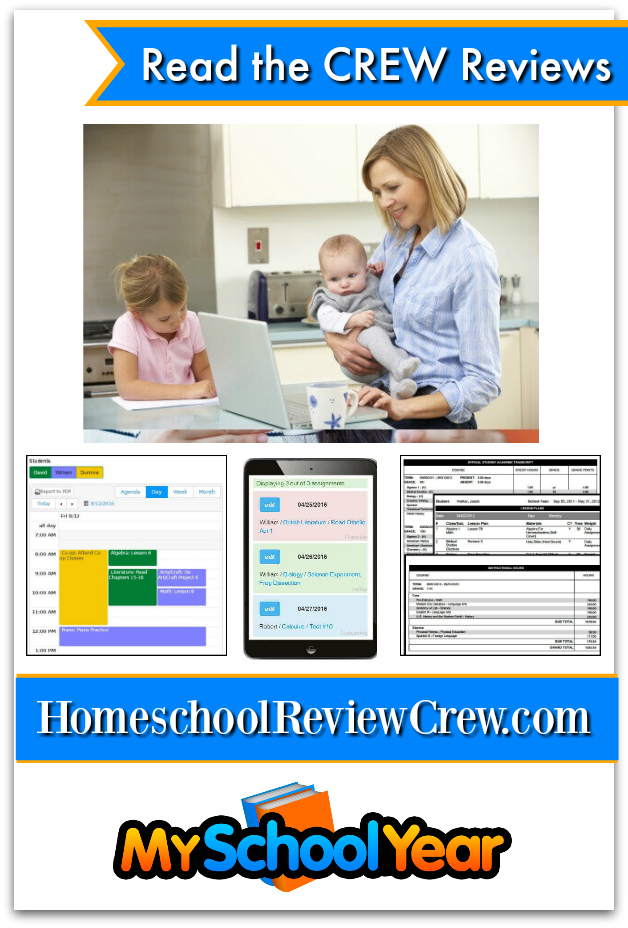
My School Year (A Schoolhouse Crew Review)


As I've mentioned before in other reviews, I've only just recently gotten to where I enjoy and actually stick to planning out my homeschool day with lesson plans and assignments.  I'm one of those who enjoys having both a physical planner and an online planner that I use during the day so I was pretty excited to get to try out an annual subscription of My School Year (Homeschool Record Keeping) from MySchoolYear.com which is an online record keeping and planner all in one.

My School Year is chocked full of useful features designed to help homeschool families keep their school year running efficiently and more organized. It's also extremely flexible as it can be accesses both from the computer, tablet or smartphone.

My SchoolYear takes the guess work out of planning by offering a neat feature called Teacher's Aide Homework Helper that walks you through the steps of adding students, planning classes, scheduling assignments and exploring other features of the program that you might overlook.   It also brings to your attention items that need addressing, such as marking a class as complete or to enter grades.


Another feature, the Planbook allows you to schedule,  modify, mark as complete or reschedule assignments.  This is probably the feature that we used the most during this review period.. As it is summer, the kids course load has been reduced and they are only doing a few things each.  I was able to plan the assignments that they are working on throughout the summer.

Actually planning the assignments themselves is super easy..  From the Planbook, you simply click on the "Actions"  button and a drop down menu gives you the option to View and Add classes.  Then, just add the lesson, the date it is assigned for and any grade value, how much time you want the student to spend on the assignment and what type of grade the assignment will be considered (test, daily assignment, laboratory experiment, ect).   Marking an assignment as complete is as easy as just clicking yes or no and BOOM! it's done.


The Homeroom Page allows you to see a quick overlook at what the student has been working, on, attendance record, and how many assignments have been completed.  These reports show your current classes, a pie graph chart that shows both attendance days and attendance hours, any events the student has done and awards given, their reading log, test grades and their extra curricular activities.


These reports just give a very quick visual overview but more detailed reports are accessible for each student.   For example, the above Orange/Blue cart shows attendance hours as a whole but a more detailed report can be published that breaks down attendance by month and hours.   Attendance is automatically tracked by the program based on the time appropriated for classes and the assignments assigned.


Another report that can be easily accessed is the student's reading log.  Garrett has really been working on his reading during the summer and we are able to keep track what he has read. The Homeroom page shows that he has read 8 books, however, the reading log allows me to show that one book he had to break down into multiple sections and it was read over a longer period of time.


Since I homeschool two 2nd Graders , I didn't use the high school transcript generator however, this option is available with the program.

I really like that this program is designed with the homeschooler in mind and the reminders through the Teacher's Aide really helps to bring my attention to things that need to be addressed.  Overall, it's a great program.


For more information about MySchoolYear and My School Year (Homeschool Record Keeping) then be sure to visit their website or their social media sites:


Twitter:  https://twitter.comhttps://twitter.com/@MySchoolYearWeb


Homeschool Record Keeping {MySchoolYear.com Review}

Disclosure

Disclosure
Related Posts Plugin for WordPress, Blogger...